Scale
Font Size
Local / Transformable Tag
Set the size of the font. You should only specify integer font sizes.
Example
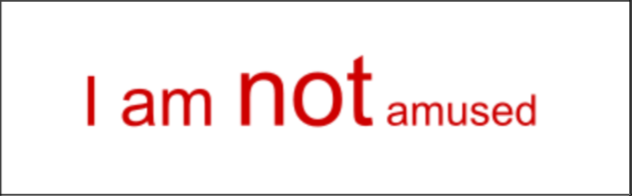
Scale in X direction
Local / Transformable Tag
Adjust the size of the text in x direction only. The scale is in percentage i.e. value of 100 means original size.
Example
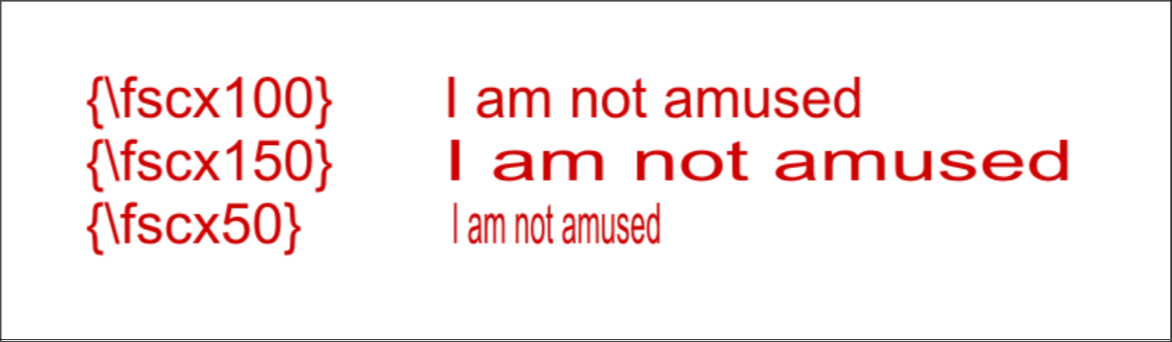
\fscx100 means original size as defined by font size.
\fscx150 means the text is 50% wider in x direction.
\fscx50 means the text is 50% narrower in x direction.
Scale in Y direction
Local / Transformable Tag
Adjust the size of the text in y direction. The scale is in percentage i.e. value of 100 means original size.
Example
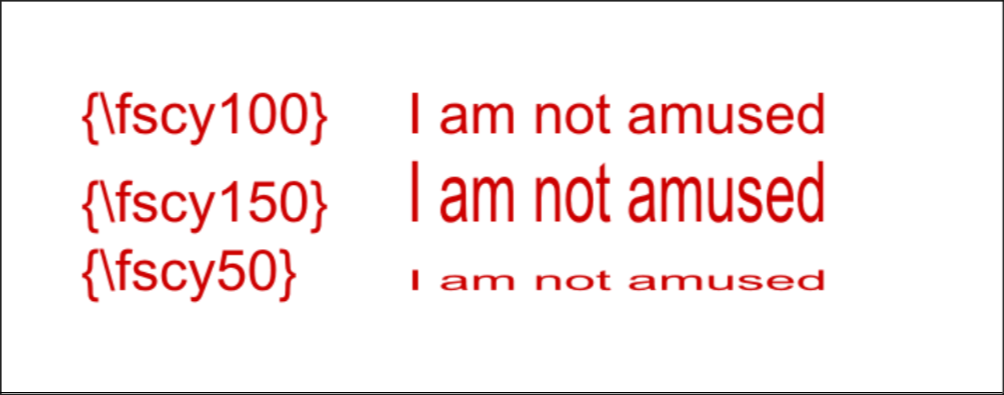
\fscy100 means original size as defined by font size.
\fscy150 means the text is 50% taller.
\fscy50 means the text is 50% shorter.
Scale Tool
There is no visual tool that inserts and changes fs tag. However, we do have a
tool that uses fscx and fscy tag.
1) Enable the Scale tool (sixth from the top). You will see two bars, one for
each axis. This rectangular bar represents the original size of the text.

-
To use this tool, click anywhere in the screen and drag the mouse up and down (to scale on the Y axis) or left and right (to scale on the X axis).
-
You can hold the Shift key before you click and drag to limit the scaling to the axis where the cursor movement is highest.
-
You can hold the Alt key before you click and drag to make equal change in both X and Y axis.