Alpha
Set the alpha (transparency) of the text. An alpha of 00 (0 in decimal) means
opaque and an alpha of FF (255 in decimal) is fully transparent.
Note
You will not be typing the hexadecimal parameter yourself. So don't go out lerning it right now.
| Format | Description |
|---|---|
| \alpha&H<aa>& | Alpha for the whole text |
| \1a&H<aa>& | Alpha for the fill of the text only |
| \2a&H<aa>& | Alpha for the fill of the text for karaoke (Rarely useful for typesetting) |
| \3a&H<aa>& | Alpha for the border of the text only |
| \4a&H<aa>& | Alpha for the shadow of the text only |
Example
| Example | Description |
|---|---|
| \alpha&H80& | Set the alpha of all components to hexadecimal 80 (decimal 128) making the whole text 50% transparent |
| \1a&HFF& | Set the alpha of fill to hexadecimal FF (decimal 255) making the fill of text 100% transparent |



Adding alpha
You can obviously type out the alpha tag yourself but you can also use the
color picker to add alpha.
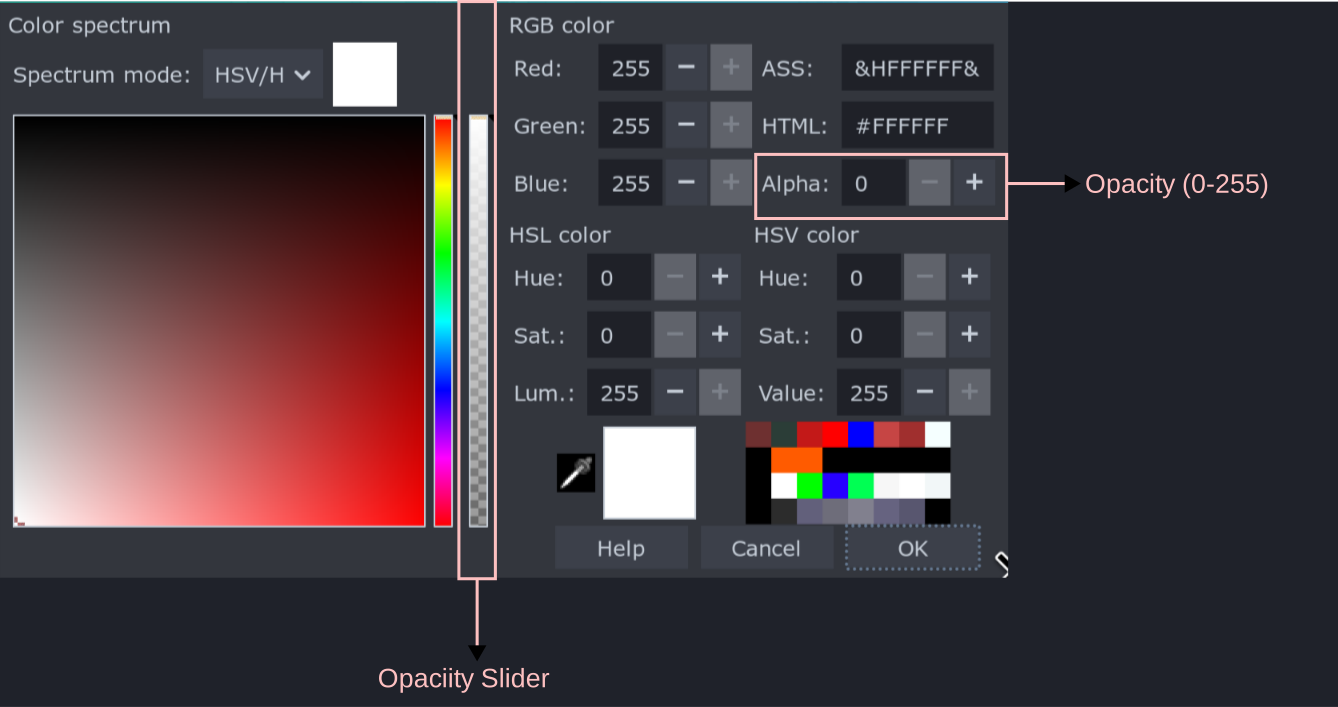
In the image above, you will notice that there is a box where you can type the
alpha in decimal from 0 (opaque) to 255 (transparent). You can type the number
there and click OK to add alpha.
However, you will also notice that there is a slider where the top represents opaque text and bottom represents transparent text. You can click anywhere in the slider or drag the slider to the desired point to apply the required transparency.
You will remember that there are four color pickers in the Edit box. You can
use those to selectively add alpha to fill, border and shadow.