Rotating Subtitles
Origin Tag
Global / Untransformable Tag
Set the coordinate for the pivot point used for rotation.
| Format | Description |
|---|---|
| \org(<x>,<y>) | Set the origin point at coordinate x,y |
When there is no origin tag in a line, the pivot point for rotation is same as the position coordinate of the line.
3D rotations of line will produce correct perspective if rotation origin is placed in vanishing point in a 3D scene.
There can be at most one \org tag in a single line, if you put more than one
in a single line, only the first is used.
Rotate on Z axis
Local / Transformable Tag
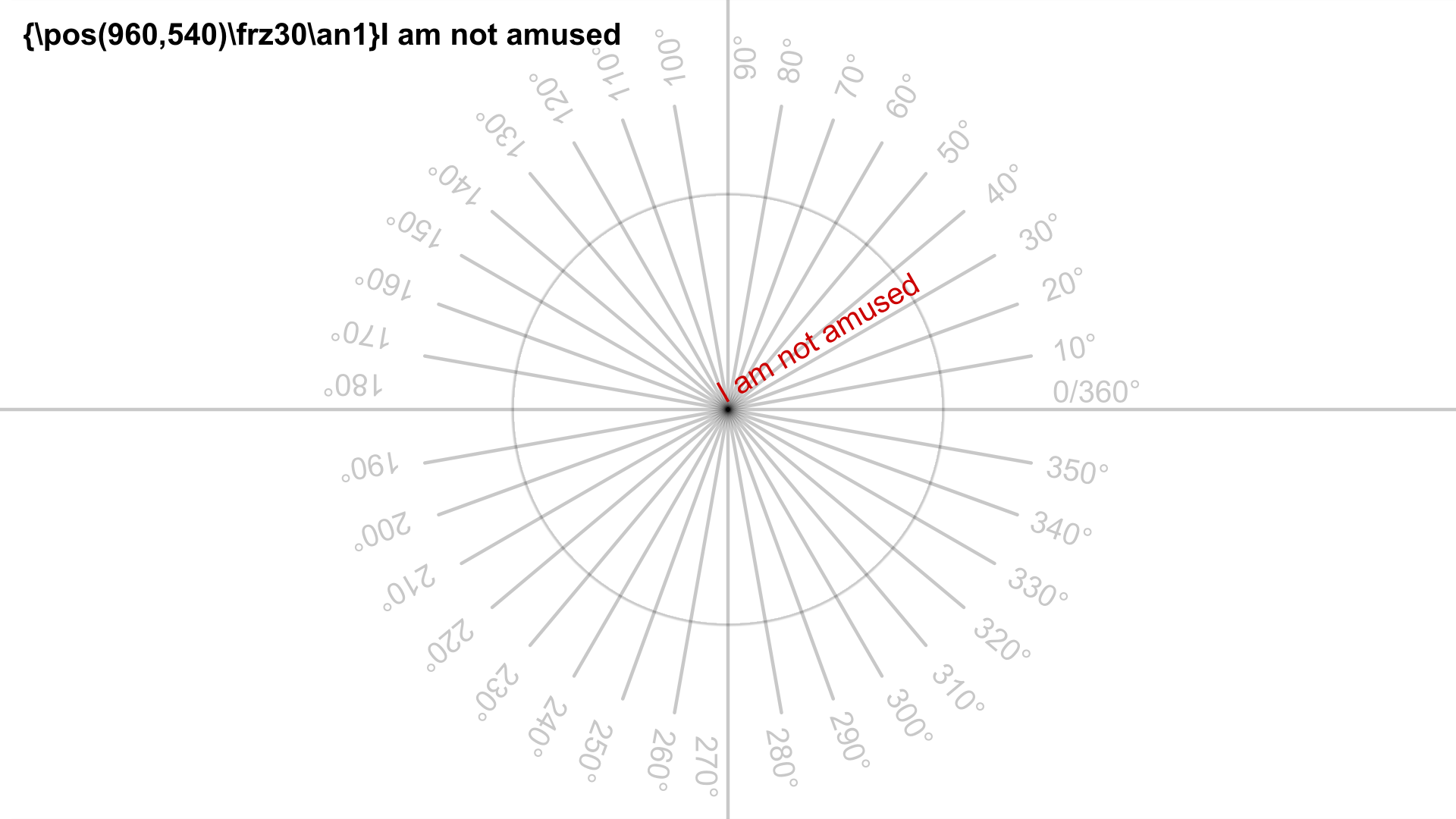
Rotating on z-axis with positive value causes the text to rotate in 2D
counterclockwise. The rotation is performed around the origin point as
described by \org tag.
| Format | Description |
|---|---|
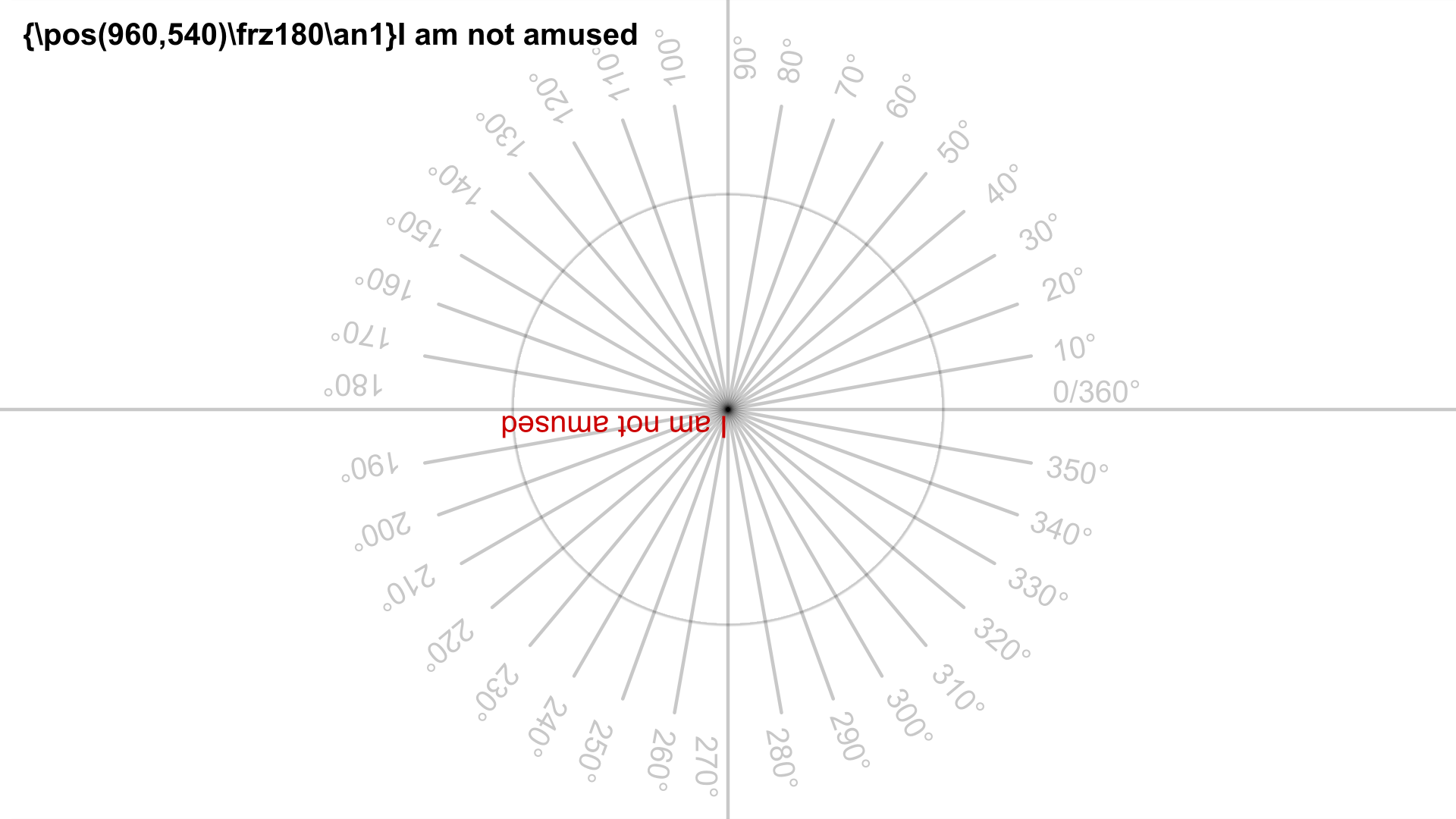
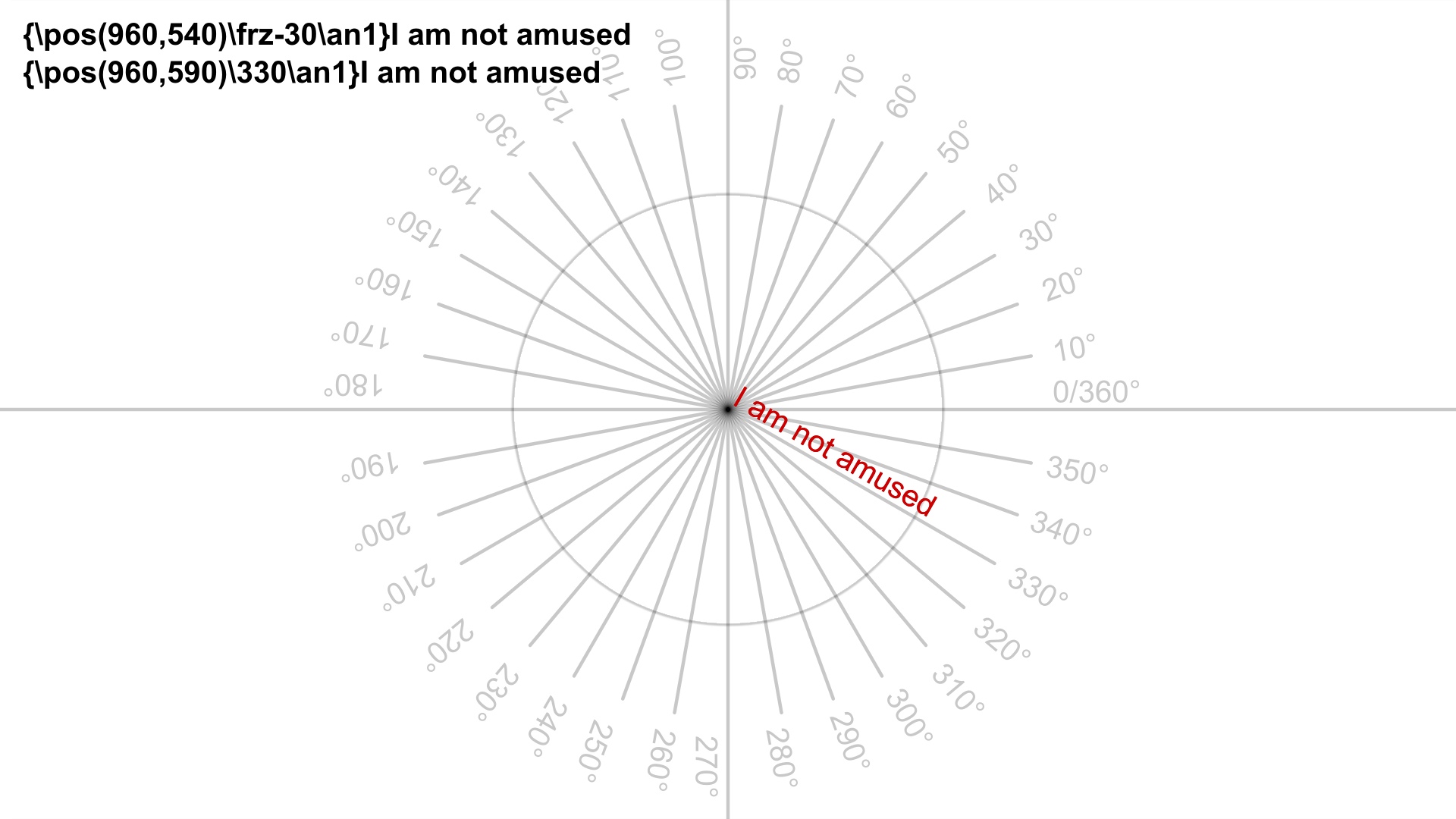
| \frz<amount> | Rotate text about pivot point by <amount> degress |
| \frz0 | Disable rotation about z-axis |
Note
It is legal to specify rotation amount more than 360 degrees. It is also legal to specify negative rotation.
Example
Rotate on X axis
Local / Transformable Tag
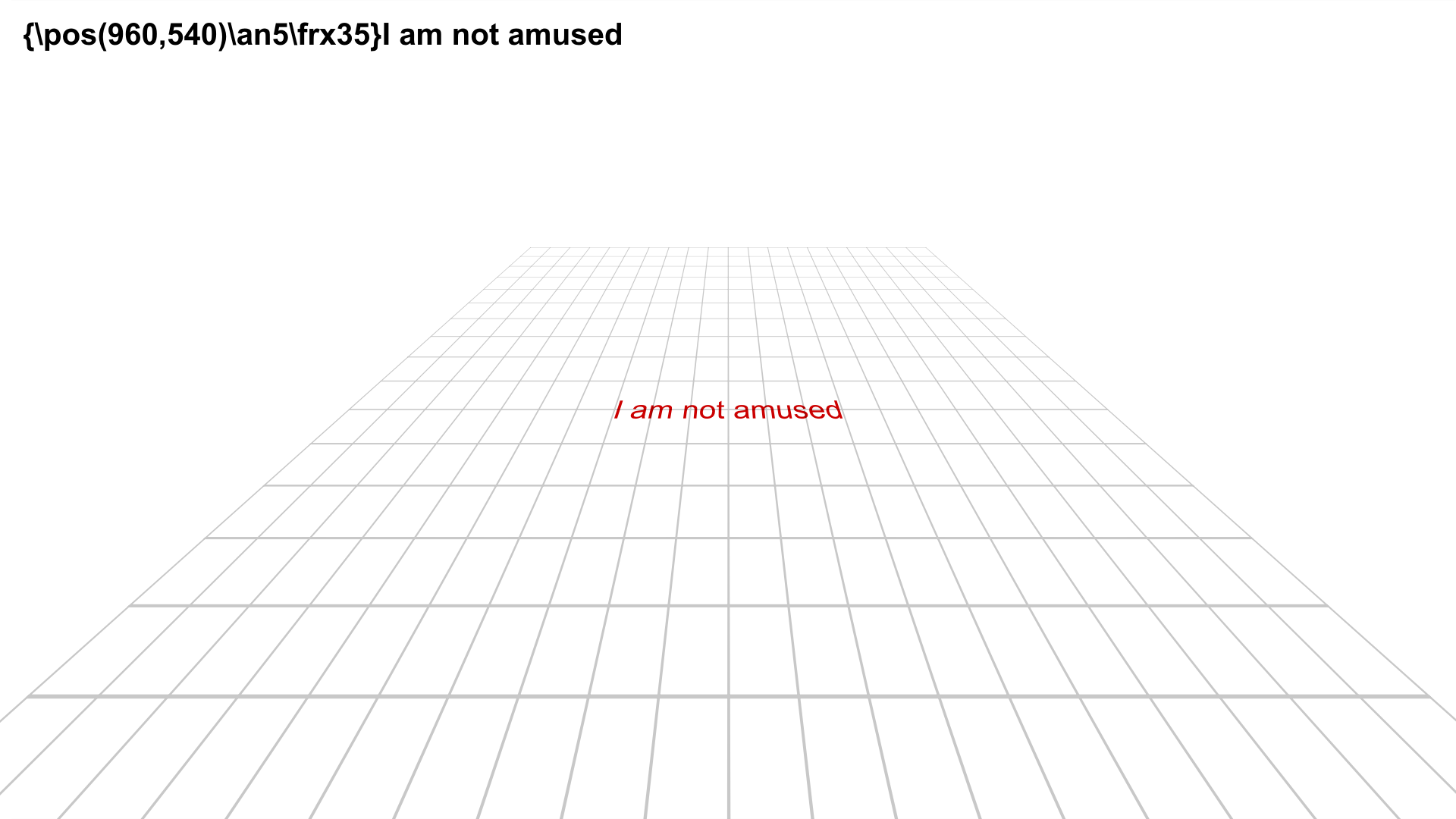
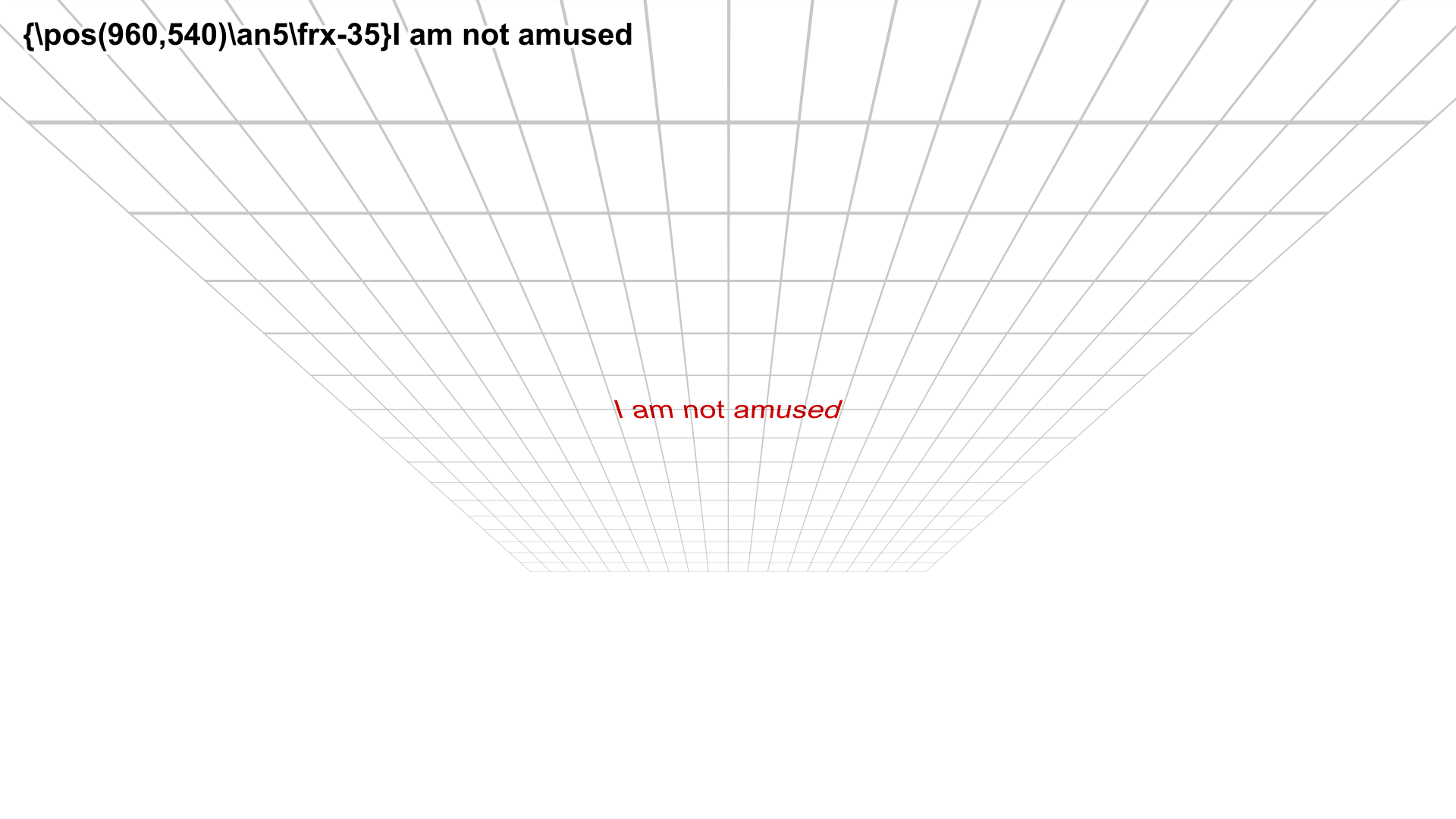
Rotating on x-axis with positive value causes an effect where the top of the text moves farther "into" the screen while bottom moves "out" of the screen.
| Format | Description |
|---|---|
| \frx<amount> | Rotate text about pivot point by <amount> degress |
| \frx0 | Disable rotation about x-axis |
Example
Rotate on Y axis
Local / Transformable Tag
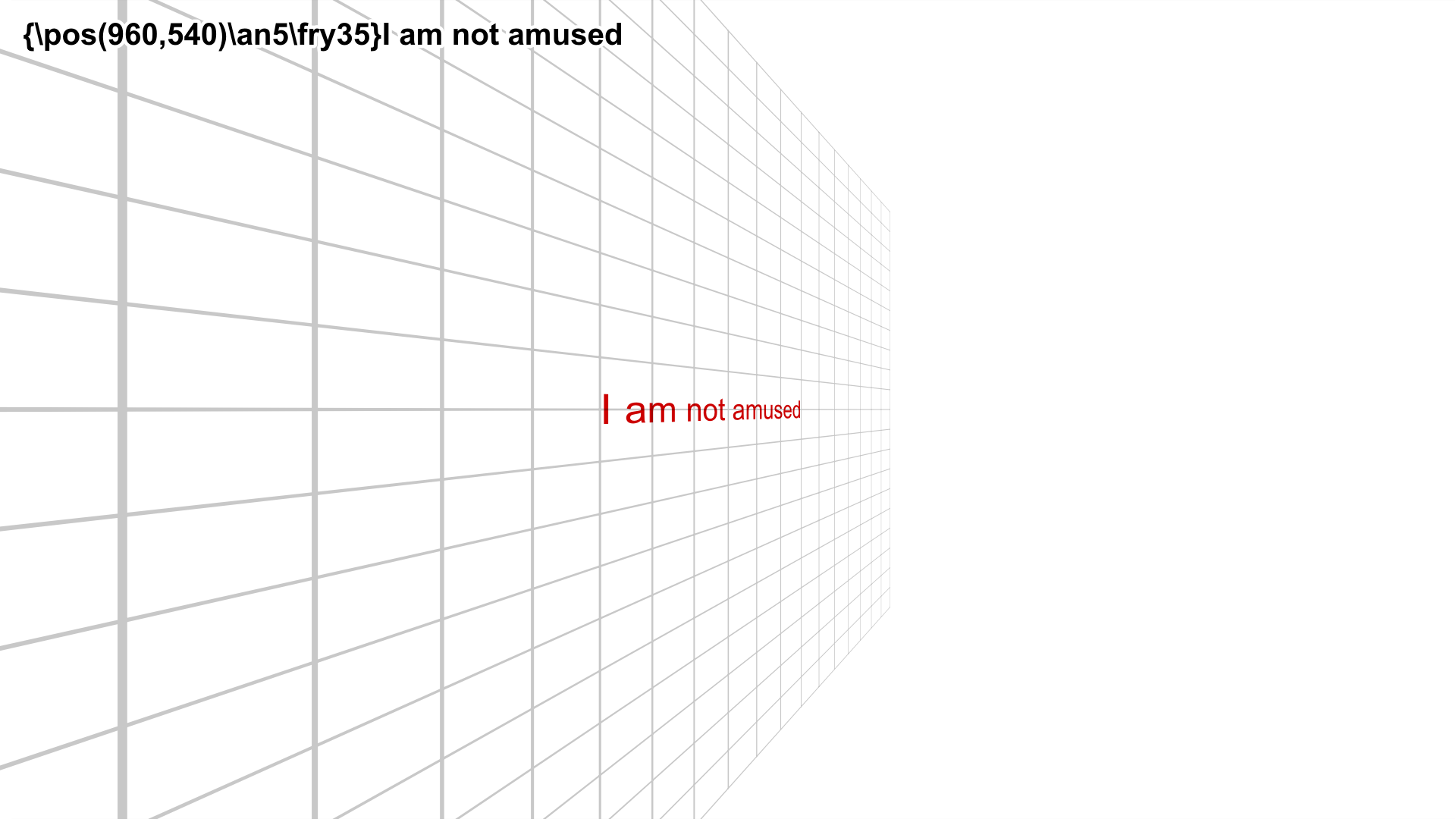
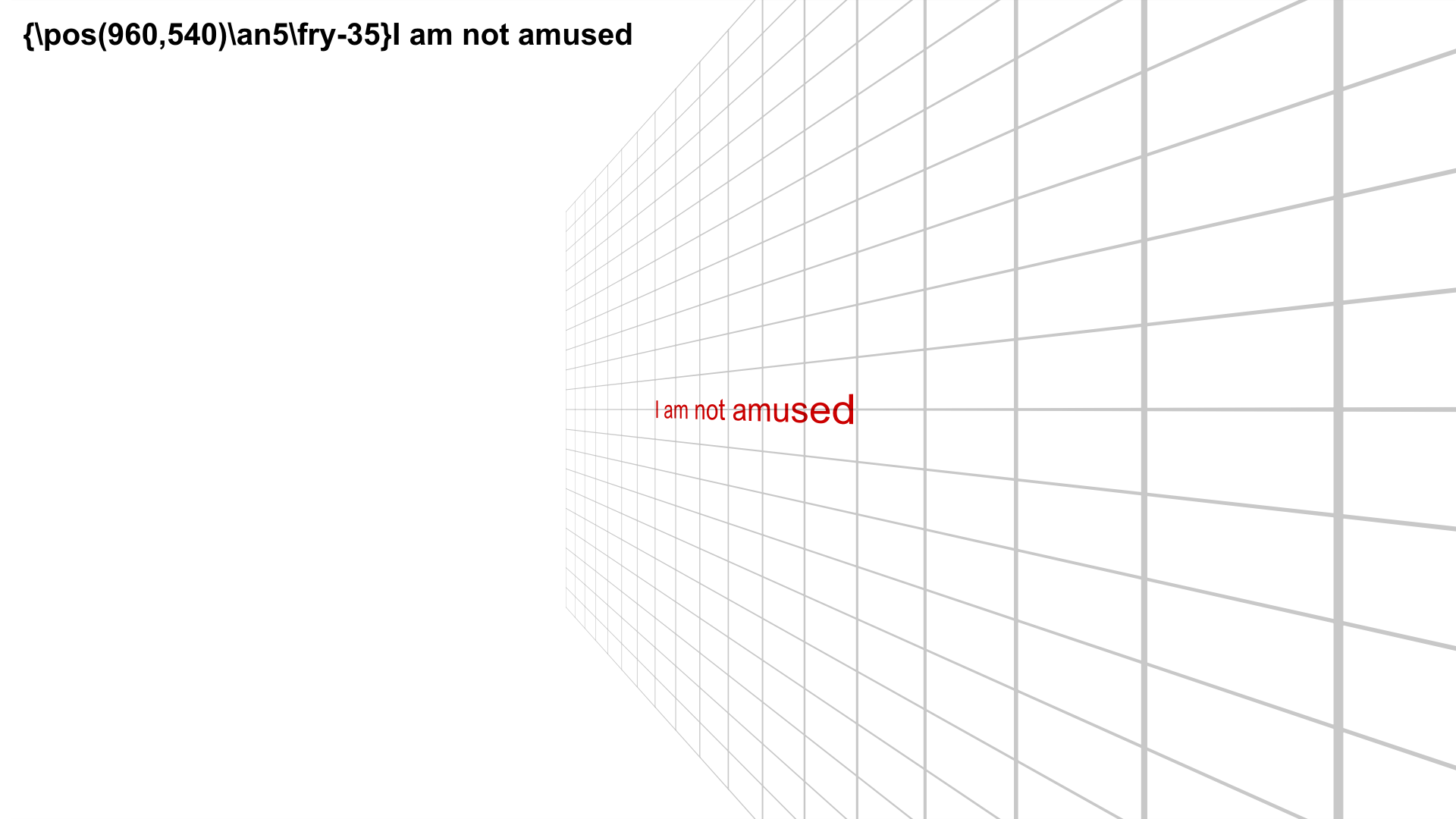
Rotating on y-axis with positive values causes the text to rotate so that the left moves "outside" the screen while the right moves "into" the screen.
| Format | Description |
|---|---|
| \fry<amount> | Rotate text about pivot point by <amount> degress |
| \fry0 | Disable rotation about y-axis |
Example
Note
Now that you know about tags that rotate about all three axes, I hope it's abundantly clear that we can use these three tags in combination to rotate text in 3D space.
Rotate Visual Tool
Enough talking about tags. Let's actually do some rotating.
-
Enable the
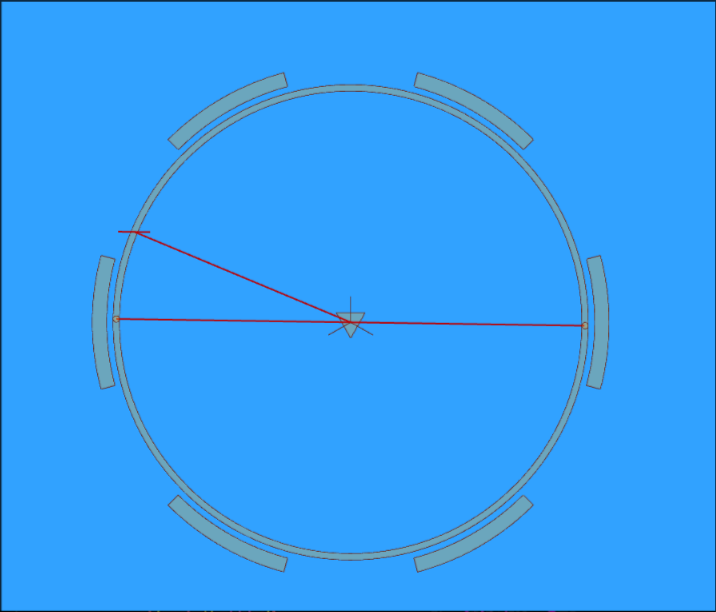
Rotate on Z axistool (third from the top). You will see the following circular shape appear near the text.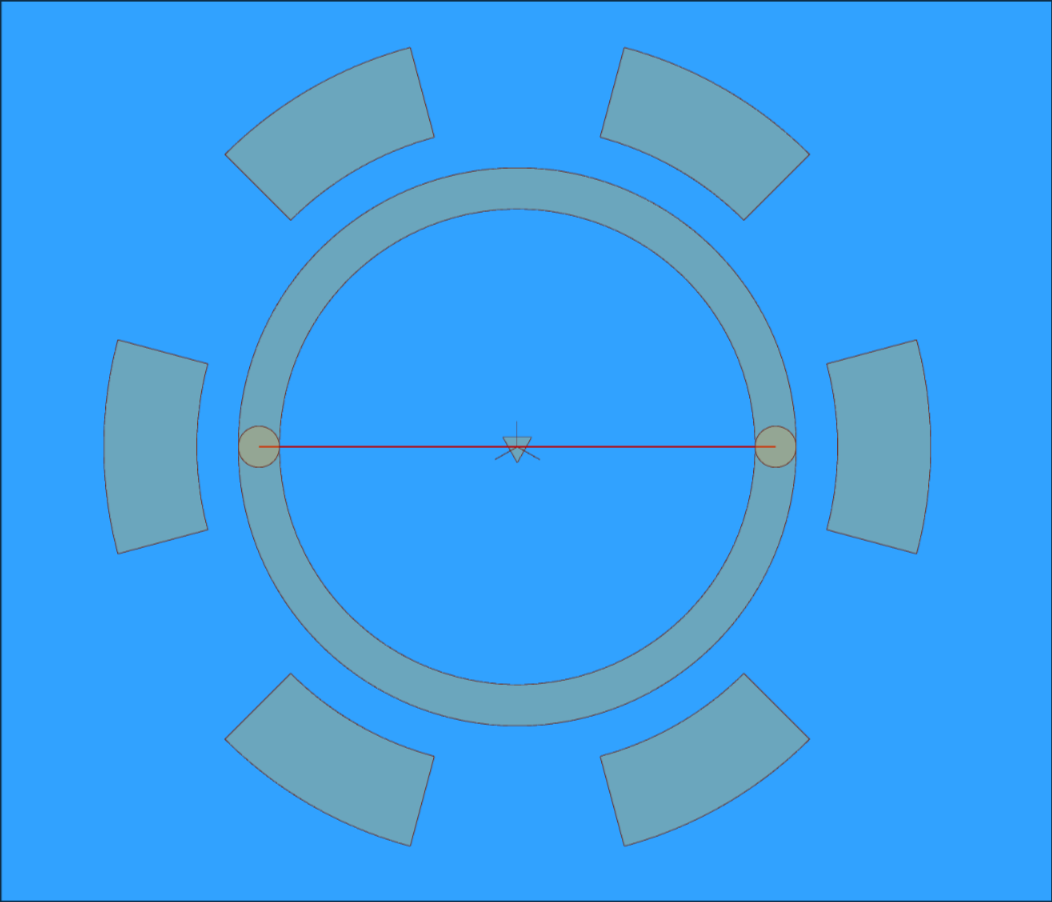
-
You will notice that there is a line, a circle and six arcs around the circle. None of that matters. Just focus on the triangle at the center of the circle and when you move the cursor, you will notice a line connecting the center and cursor.
- The triangle represents the position in video where the coordinates of the
orgtag is located. You can click and drag the triangle to change the coordinate of theorgtag. If a line does not haveorgtag, it gets added. - The line connected to cursor acts as a handle to rotate the text. Click anywhere on the screen and drag it around the center. The text will rotate following this line.
- While you are rotating, you can press Ctrl key to limit the rotation to increments of 30 degrees.
- If the origin is far from the center of the line, the third line enters the
scene. This is just a helper line that indicates the center of the text as
you rotate it. It's just a visual guide and not too important.
Rotate on XY Plane
I don't know how to use this tool. If you know, good for you but I have never managed to use it to rotate the text the way I want it too. I cannot teach you what I don't know so I will skip it.
But if you don't learn how to use it, how are you going to rotate the text in 3D
space. Being able to do it sounds pretty important. For that, we will use
Perspective tool. There is a separate page for perspective so we shall discuss
it here.
Adding and changing origin tag
Adding origin tag
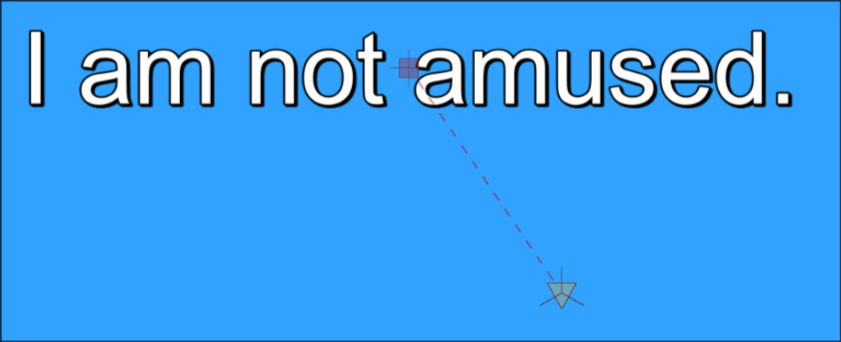
Remember the triangle in the Rotate tool? Just like square represented the
position of the text in Drag tool, the triangle here represents the origin.
Dragging that triangle will add the org tag.
Changing origin tag
Just like you dragged the square to change coordinates in pos tag,
dragging the triangle will change the coordinate in org tag.
But you can also change the origin in Drag tool as well because if your line
has org tag, the triangle can also be seen when you enable Drag tool.
Info
In short, you can only add org tag using Rotate tool but you can change
it in both Rotate and Drag tool.
Rotating multiple lines
Remember, you could press Ctrl while clicking on the red squares in Drag
tool to select all of them to change all of their position. You cannot do that
in Rotate tool.
However, you can select multiple lines in Subtitle Grid and if you enable the
Rotate tool, it will only show for the active line. If you rotate the active
line, all the selected lines will rotate the same way even if the line is not
visible in current frame.