Positioning and Aligning Subtitles
In this page, we will learn two more override tags and how to use them to set position of text in the video as well as how to align them.
Alignment Tag
Global / Untransformable Tag
Specify the alignment of the line. The alignment specifies the anchor for the position of the subtitle. The tag uses "numpad" values for the positions. Note that this is a global tag meaning, you can only use this tags once in a line.
| Format | Description |
|---|---|
| \an<1-9> | Set the position of the line at coordinate x,y |
| \an1 | Set the anchor at the bottom left of text |
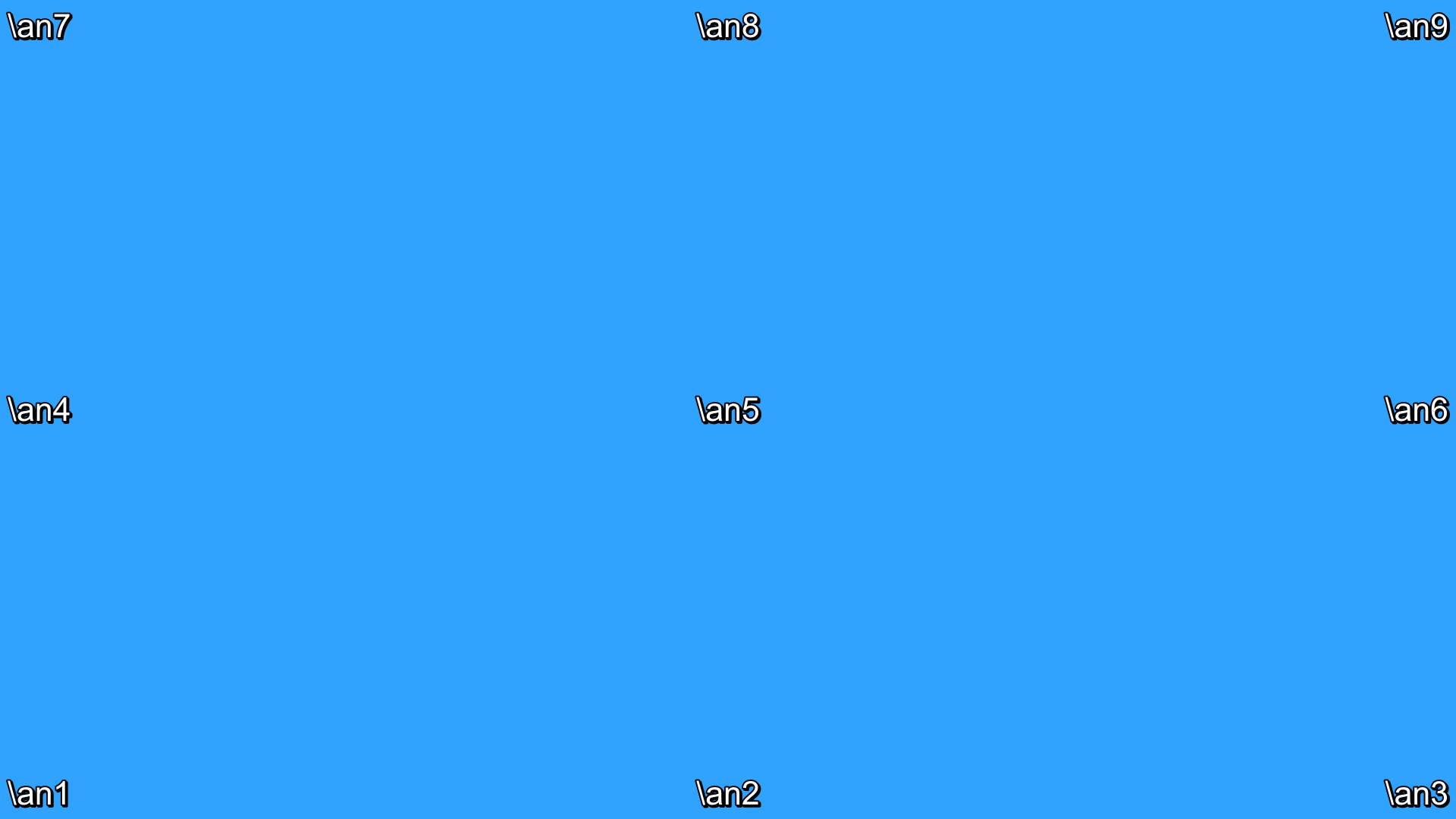
Example


Position Tag
Global / Untransformable Tag
Set the position of the line. The X and Y can be an integer or a decimal and negative.
| Format | Description |
|---|---|
| \pos(<x>,<y>) | Set the position of the line at coordinate x,y |
| \pos(0,0) | Set the position at the top left |
| \pos(100,500) | Set the position at 100 pixels from left and 500 pixels down from top |
The position of a line is relative to the alignment of the line i.e. same x and y coordinate of the position renders a different output for different value of alignment.
Observe that even though the position is same i.e. (960,540), the position of
the line changes based on the alignment used. Try to understand how different
values of align tag changes the anchor for the position tag.
If \pos tag is not used in a line, the position of the line is informed
by the alignment.
Adding Position Tag
We learned about the position tag but will we really have to type the x and
y coordinate by ourselves? That would be tedious as hell. So we shall be using
our first visual tool to add position tag.
Crosshair Tool
- Enable the
Standard ModeorCrosshairtool in the video box if it is not enabled. - Move the crosshair to the position in video where you want to move the text to.
- Double click at that location. A
\postag will be added to line at that coordinate.
Drag Tool
If you think double clicking at a position in video will be accurate, you're
very wrong. Let's try to be more accurate now. Let's use the second visual tool
of the day: Drag tool.
The moment you enable the drag tool (I hope you remember which tool is drag tool. Click on it to enable it), you will see a red square near the text.
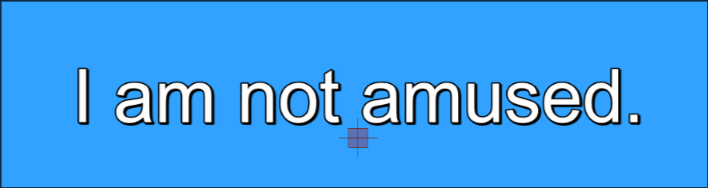
This red square exists at the exact coordinate where your text is positioned at
i.e. if you have pos(100,200) in your line, the red square exists at the
coordinate 100,200. If you don't have any pos tag, the position of text is
informed by style and this red square exists at that position.
You can click on this red square and drag it to move the text. You can position the text with much more fidelity using this tool. You can of course double click the drag tool at any point of the video just like the crosshair tool to directly move it there.
Changing position of multiple lines
If there are multiple lines in the screen, and you have drag tool enabled, you will find that the red square of the active line is deeper red while all others are orange.
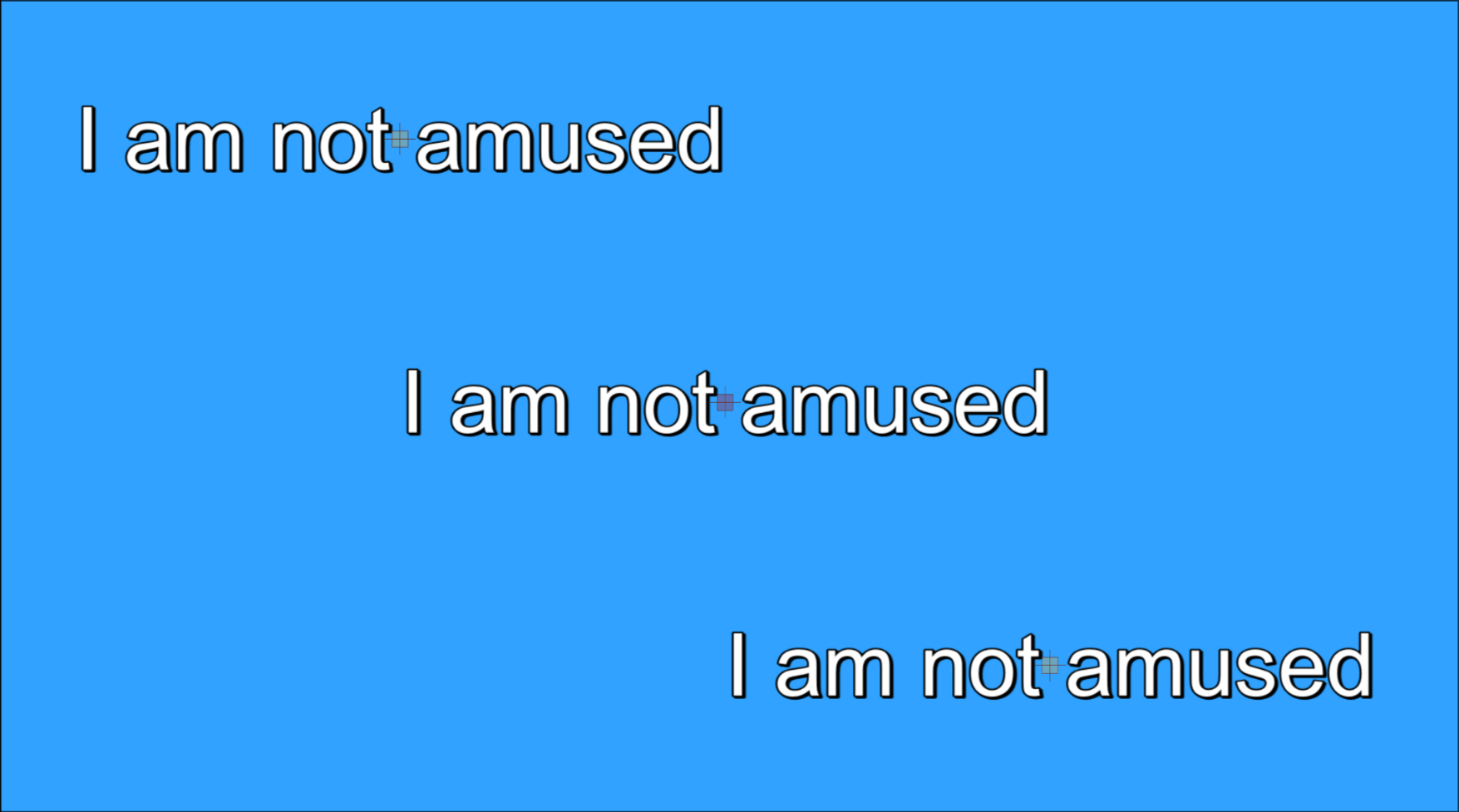
You can press Ctrl while clicking all the squares to activate multiple lines at once. Then you can drag all of them together relative to their current position.
You can also select multiple lines in subtitle grid and if you drag one of those, all of the selected lines will move relative to their current position even if the line is not visible in the screen.
A bit more on \an and \pos
I think it might be worthwhile to talk more about how alignment affects the position of a line. This effect will be more apparent when we use a multi-line text. I'll just show the same multi-line text with same position but with different alignment. Keep you eye on the justification of the text and the position of the red square with respect to text. I'll not explain more here since I believe you have all the information to judge what is happening.