Perspective
Back when we were discussing rotation of text, I shamelessly decided not to
teach you how to rotate text in x and y axes. So you only know how to rotate
it in z axis. However, today you will learn how to apply perspective to the
text.
We have already learned all the tags required for this so if you are unsure what
these tags do, go back and learn them: org, fscx, fscy, fax,
frx, fry, frz, xbord, ybord.
Perspective Tool
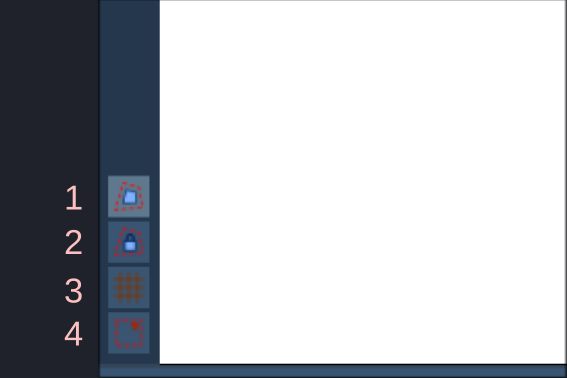
Perspective tool (fifth from the top in video box) also has subtools just like clip tool does. When this tool is enabled, rectangle(s) appear around the text. They are called quads below and its tooltip. We drag the control handles at the corner of the quads to change the perspective of the text.
There are four subtools:
| Item | Description |
|---|---|
| 1 | When enabled, shows two quads around the text which we can use to control perspective. When disabled, there is only one quads around text. I recommend to keep it enabled |
| 2 | Used to lock the quads from changing perspective while we resize the quads. When there are two quads around the text and this tool is enabled, outer quads are locked. So you can freely resize it without affecting perspective. When it is disabled, inner quads are locked. |
| 3 | Shows 3D grid to check if perspective is accurate to the plane or not. Purely an aid tool. |
| 4 | Used to cycle between three modes Keep: Keep the current coordinates of \org tag intact while changing perspectiveCenter: Puts the \org tag at the center of the quadNo \fax: Puts \org at the location where \fax tag can be set to 0. Useful for lines with line breaks. |
Using the perspective tool
Personally, I never use tool 3. I always keep tool 4 to Center mode. I always
keep tool 1 enabled where I use outer quad to determine perspective for the text
and inner quad to determine the size and position for the text. I enable or
disable tool 2 when needed.
Some odd quirks in perspective tool
Note
These quicks may have been fixed by the time you read this. This is just for your information so you don't panic if this happens.
- When you are zooming and panning too much, the quads may go haywire or outright disappear.
- Let's say you use perspective tool in a line. You remove all the tags in the line and try to use the perspective tool in the same line. The quads may look odd or appear in a position different than the text. This is because Aegisub stores the quad info for the line in extradata (If you don't know what extradata is, that's cool. It just stores it somewhere) and may be reusing it.